Add TopTechs as a preferred source
There are two ways to cast your laptop to a TV. Connect them with an HDMI cable for the most reliable picture, or cast wirelessly using screen mirroring (Miracast on Windows), Chromecast, or AirPlay on a Mac.
This guide shows you both, on Windows and Mac, in simple steps. It also fixes the two most common problems: a black screen, and no sound.
Quick answer
- Easiest and lag-freePlug an HDMI cable from your laptop into the TV and press the TV's Source button
- Wireless on WindowsPress Win + K and pick your TV. Needs a Miracast TV on the same Wi-Fi
- Wireless on MacUse AirPlay from Control Centre and pick your TV. Needs an Apple TV or AirPlay 2 TV on the same Wi-Fi
- Chromecast or Google TVIn Chrome, click ⋮ → Cast, save, and share → Cast…. Works from Windows or Mac on the same Wi-Fi
How do I cast my laptop to a TV?
There are two routes.
The wired way uses an HDMI cable and works with any TV. The wireless way mirrors your laptop over Wi-Fi to a smart TV, a Chromecast, or an Apple TV.
HDMI is the most reliable. Wireless is more convenient. Both are covered below.
Check these first:
- For HDMI through USB-C, the laptop's USB-C port must carry video. Our dual-monitor guide shows how to check.
- For wireless, put the laptop and the TV, or its streaming stick, on the same Wi-Fi.
- Press Windows + K to check that a Windows laptop supports Miracast. Without it, Windows may say you need to connect a display with a cable.
The steps are for Windows 10 and 11, and for macOS Ventura (13) or later. On older Macs, System Settings is called System Preferences.
Method 1: Connect with an HDMI cable
Plug one end into your laptop and the other into any spare HDMI port on the TV, then use the remote's Source or Input button to select that channel.
Your laptop screen appears instantly, with no Wi-Fi needed. This gives the best picture and zero lag.
- Connect an HDMI cable from your laptop's HDMI port to a free HDMI port on the TV.
- On the TV remote, press Source or Input and choose the matching HDMI input, such as "HDMI 1".
- On Windows, press Windows key + P and pick Duplicate for the same screen, or Extend to use the TV as a second screen.
- On a Mac, choose to mirror or extend when the Mac asks. To change it later, open System Settings → Displays, click the TV and pick an option from the Use as menu.
No HDMI port on your laptop? Thin laptops and MacBooks often only have USB-C. Use a USB-C to HDMI adapter, or a mini-DisplayPort adapter on older machines, and follow the same steps.
Method 2: Cast wirelessly on Windows
Press Windows key + K to open the Cast panel, then select your TV from the list.
This uses Miracast screen mirroring, so both devices must support it and be on the same Wi-Fi network. Your screen mirrors to the TV in a few seconds.
- Make sure the TV's screen-mirroring mode is on. Most smart TVs call it "Screen Mirroring", "Miracast" or "ScreenShare".
- On the laptop, press Windows + K on Windows 10 or 11. On Windows 11 you can also open Settings → Bluetooth & devices → Add device → Wireless display.
- Pick your TV from the list and wait for it to connect.
If your TV is not Miracast-ready, plug a wireless display dongle or an Amazon Fire TV Stick into an HDMI port. Both add screen-mirroring support to any TV. On a Fire TV Stick, turn it on in Settings → Display & Sounds → Enable Display Mirroring.
TV not in the list? Check that Wi-Fi is on and the TV's mirroring mode is on, then restart the laptop and the TV. Microsoft also suggests removing the TV under Settings → Bluetooth & devices → Devices and connecting again.
Method 3: Cast using Chromecast or Google TV
With a Chromecast or Google TV, you can cast straight from the Chrome browser. You can send one browser tab or your whole desktop.
- Connect your Chromecast / Google TV and put it on the same Wi-Fi as your laptop.
- In Chrome, click the ⋮ menu → Cast, save, and share → Cast….
- Choose Sources → Cast tab for just the page, or Cast screen for everything, then pick your TV.
This works from Windows and Mac. On macOS 15 or later, Google says you must first give Chrome access in your Mac's system settings.
Google's own Chromecast help pages list exactly which browsers and devices are supported.
Method 4: Connect a Mac with AirPlay
On a Mac, use AirPlay to mirror wirelessly to an Apple TV or an AirPlay 2 compatible smart TV.
- Click the Control Centre icon in the menu bar.
- Choose Screen Mirroring and select your TV.
- If a code appears on the TV, type it on your Mac to connect.
- Choose whether to mirror or extend your screen, or share one window, when the Mac asks.
Both devices must be on the same Wi-Fi. Apple's AirPlay guide for Mac has the full steps. If your TV is not listed, Apple suggests updating both devices and restarting them.
For a Mac with only USB-C, a USB-C to HDMI adapter plus an HDMI cable is the reliable wired alternative.
How to connect without a cable, or without Wi-Fi
To connect without a cable, use wireless screen mirroring. That means Miracast on Windows (Method 2), Chrome casting to a Chromecast or Google TV from Windows or Mac (Method 3), or AirPlay on a Mac (Method 4). Each one needs the devices on the same Wi-Fi.
If you have no Wi-Fi at all, an HDMI cable is the answer. It needs no network and works anywhere, so it is the most dependable option for presentations.
Fix: connected, but no sound on the TV
If the picture shows but there is no sound, your laptop is still playing audio through its own speakers.
- On Windows: right-click the speaker icon → Sound settings → set the TV, or "Digital Output", as the output device.
- On a Mac: go to System Settings → Sound → Output and choose the TV.
- From Chrome: cast a tab instead of the whole screen. Google says screen casting may keep the sound on the laptop.
This fixes the most common laptop-to-TV problem.
Black screen or "no signal"? Select the correct HDMI input on the TV, reseat the cable, and press Windows + P → Duplicate. On a Mac, open System Settings → Displays, hold Option and click Detect Displays. A cheap or damaged cable is a frequent culprit, so try another one.
If a wireless cast shows a black screen, disconnect, restart the laptop and the TV, and connect again.
Which method should you use?
Pick based on what you have and what you are doing.
| Method | Works from | What you need | Best for | Lag |
|---|---|---|---|---|
| HDMI cable | Windows and Mac | HDMI/USB-C port + cable | Movies, gaming, presentations | None |
| Windows wireless (Miracast) | Windows | Miracast TV + same Wi-Fi | Quick sharing, no cables | Slight |
| Fire TV Stick or wireless display dongle | Windows | A spare HDMI port + same Wi-Fi | TVs without screen mirroring | Slight |
| Chromecast / Google TV | Windows and Mac | Chromecast + Chrome + same Wi-Fi | Web videos & tabs | Slight |
| AirPlay (Mac) | Mac | Apple TV / AirPlay-2 TV + same Wi-Fi | MacBook users | Slight |
What to buy if your setup will not cast
Two cheap fixes cover almost every failed-casting situation.
- Amazon Basics High-Speed HDMI cable. The wired route always works, adds no lag, and costs less than a coffee. Worth having even if you normally cast wirelessly.
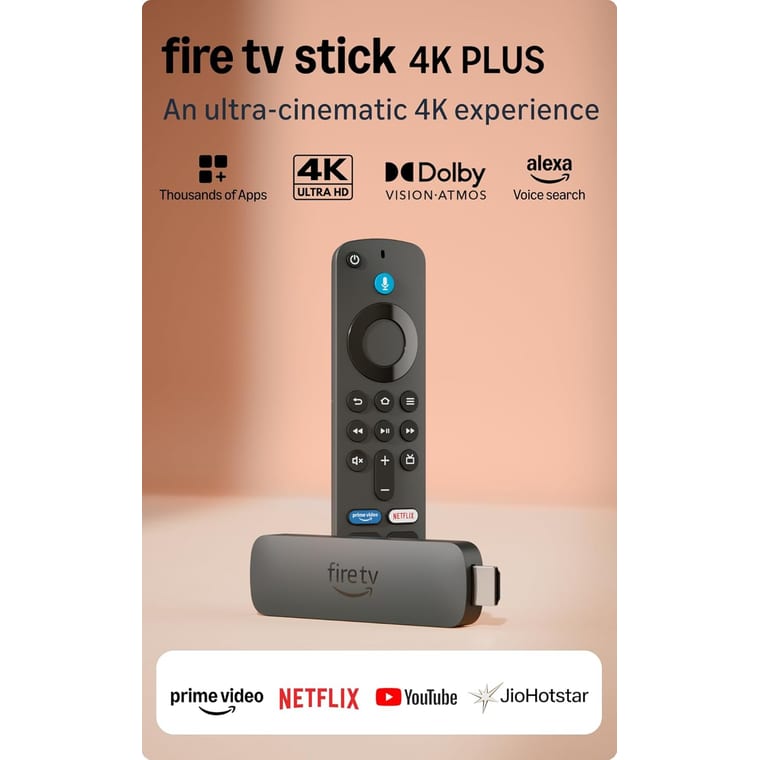
- Amazon Fire TV Stick 4K Plus, turns any older TV with an HDMI port into a casting target, so you can mirror from Windows laptops and Android phones without a smart TV. Amazon says Macs and iPhones cannot mirror to it.
What to remember
The fastest and most reliable way to cast your laptop to a TV is a simple HDMI cable.
For convenience, wireless screen mirroring on Windows or AirPlay on a Mac works well when both devices share Wi-Fi. If your TV cannot mirror wirelessly, a small streaming stick adds the feature to any screen.
To capture what you would otherwise cast, learn how to screen record on Windows or on a Mac.
To show your phone's screen instead, see how to connect a phone to a TV.
Want more guides like this? Browse our how-to guides and laptop tips, or see our pick of the best laptops for students. Stuck on a specific TV or laptop model? Ask us.