Add TopTechs as a preferred source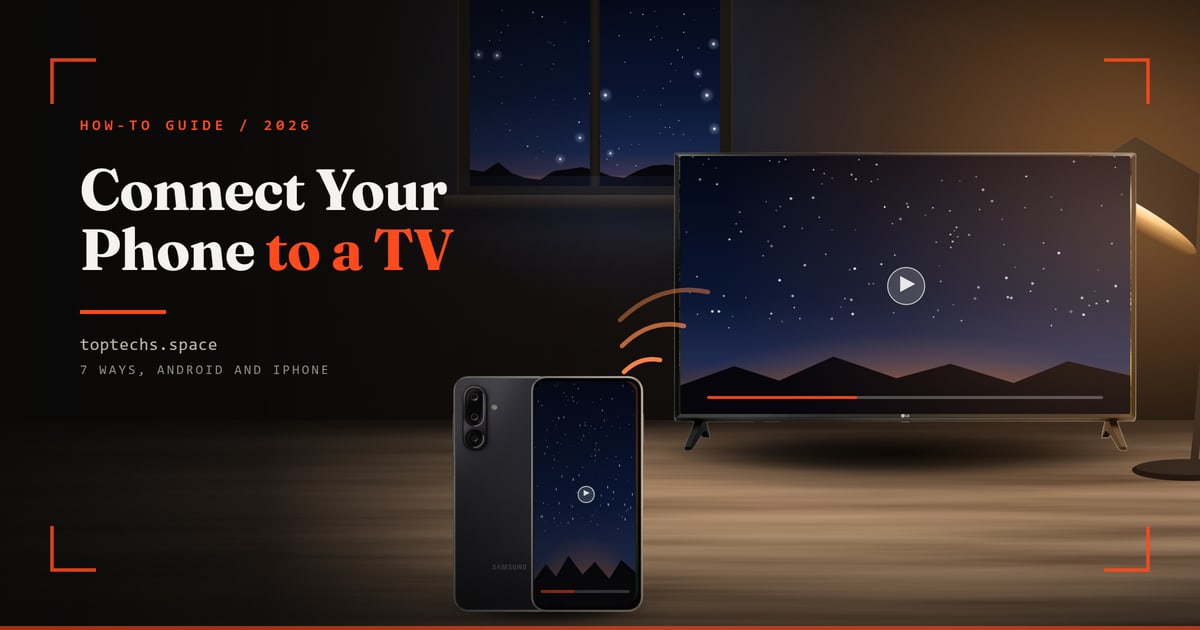
To connect your mobile to a TV, open your phone's quick settings, tap the screen-cast button and choose your TV. Samsung calls the button Smart View, Xiaomi, Redmi and Pixel phones call it Cast, and an iPhone calls it Screen Mirroring. Keep the phone and the TV on the same Wi-Fi network.
Casting is free on a smart TV with screen mirroring, Google Cast or AirPlay. For weak or no Wi-Fi, use a cable if your phone's charging port can send video. For a non-smart TV, use a cable or add a streaming stick. The accessories below cost around ₹2,300 to ₹5,900 on Amazon.in.
How to connect mobile to TV: quick answer
- Android phoneQuick settings, then Smart View, Cast or Screencast
- Google TV or ChromecastGoogle Home app, then Cast my screen (Android 8.0 or later)
- iPhoneControl Centre, then Screen Mirroring, to an Apple TV or AirPlay TV
- YouTube and other appsTap Cast inside the app
- USB-C phone, by cableUGREEN USB-C to HDMI cable, around ₹2,300, 4K 60Hz, only if your phone's port sends video
- Older iPhone, by cableApple Lightning Digital AV Adapter, around ₹5,900 plus an HDMI cable, up to 1080p
- Non-smart TVFire TV Stick 4K Plus, around ₹5,499, Android mirroring only, or a cable
Steps checked on 14 October 2026 against the help pages of Google, Apple, Samsung, LG, Sony, Xiaomi, Netflix and Amazon.
Which method works for your phone and TV?
Samsung, LG and Xiaomi smart TVs accept Miracast mirroring from Android phones that support it, while Sony's Google TVs need Google Cast. iPhones mirror only to an Apple TV or an AirPlay TV. Any TV with HDMI works by cable, if your phone sends video.
First, put the phone and the TV on the same Wi-Fi and switch the TV on. Prices are from Amazon.in on 14 October 2026.
| Your TV | Android phone | iPhone | Extra cost |
|---|---|---|---|
| Samsung smart TV | Smart View, or the phone's mirroring tile | AirPlay (2018 and newer) | None |
| LG webOS TV | Mirroring tile, after turning on Screen Share | AirPlay (many 2018 and newer models) | None |
| Sony Google TV | Google Cast (Method 2) | AirPlay | None |
| Other Google TVs | Google Cast (Method 2) | AirPlay if the TV lists it, or app casting (Method 4) | None |
| Xiaomi or Mi TV | Google Cast, or the TV's Miracast app | App casting (Method 4) | None |
| Fire TV Stick or Redmi Fire TV | Display Mirroring (Miracast) | Cable or Apple TV only | None for Android |
| Non-smart TV, by cable | USB-C to HDMI cable (Method 5) | USB-C to HDMI cable, or Lightning adapter and HDMI cable | ~₹2,300 (USB-C cable), or ~₹5,900 + ~₹279 (Lightning adapter + HDMI cable) |
| Non-smart TV, with a stick | Fire TV Stick 4K Plus (Method 7) | Not supported | ~₹5,499 |
Miracast is a wireless mirroring standard that the phone and the TV must both support, says the Wi-Fi Alliance. Google Cast is Google's, built into Google TV and Chromecast. AirPlay is Apple's.
Method 1: Mirror an Android phone from quick settings
Open quick settings, tap the screen-cast tile and choose your TV. The tile's name depends on the brand. Your whole phone screen then appears on the TV, as long as the TV supports Miracast or Google Cast and shares your Wi-Fi network.
Samsung says Smart View reaches Samsung TVs, Miracast TVs and Chromecast devices. Xiaomi, OnePlus and vivo tiles need the TV's own Miracast-style mirroring, which Sony's Google TVs lack. For a Google TV, use Method 2 if your phone cannot find it. On Xiaomi and Redmi phones, turn off the hotspot first.
- Connect the phone and the TV to the same Wi-Fi network. On an LG TV, turn on Screen Share first, and on a Xiaomi TV, open the Miracast app.
- Swipe down from the top of the screen to open quick settings (twice on a Pixel).
- Tap the cast tile. Samsung calls it Smart View, Xiaomi, Redmi and Pixel phones call it Cast, and OnePlus calls it Screencast.
- Tap your TV, then accept the request on the TV or type the PIN it shows. A Samsung phone may also ask you to tap Start now or Connect.
To stop, tap the tile again and choose Disconnect. If the tile is missing, tap Edit in quick settings and add it.
In Settings, Pixel phones list the cast option under Connected devices, Connection preferences, Google Cast. Xiaomi uses More connectivity options, Cast (HyperOS) or Connection & sharing (older MIUI), and vivo uses Smart Mirroring.
Method 2: Cast an Android screen with the Google Home app
If your TV runs Google TV or you use a Chromecast, the free Google Home app casts your whole Android screen. Google says this needs Android 8.0 or later, with the phone and the TV on the same Wi-Fi network.
Before you start, allow the microphone permission for Google Play services, as Google's screen-casting help page asks.
- Install the Google Home app, open it and tap Favorites or Devices.
- Long-press your TV's tile.
- Tap Cast, then Cast my screen (or Cast screen). To share one app, choose Cast one app.
To stop, long-press the tile and tap Stop mirroring.
Method 3: Mirror an iPhone to a TV with AirPlay
Open Control Centre on the iPhone, tap Screen Mirroring and choose your TV. It works with an Apple TV and with AirPlay TVs on the same Wi-Fi network. These include many Samsung and LG models from 2018 onwards and Sony's Google TVs.
Samsung TVs need iOS 12.3 or later, and LG TVs need iOS 12.4 or later.
- Turn on AirPlay on the TV if it is off. The Samsung, LG and Sony sections below show where.
- Connect the iPhone to the same Wi-Fi network as the TV.
- Open Control Centre. Swipe down from the top-right corner on iPhone X and later, or up from the bottom edge on iPhone 8 and earlier.
- Tap Screen Mirroring and choose your TV.
- If a passcode appears on the TV, type it on the iPhone.
To stop, tap Screen Mirroring, then Stop Mirroring. For one video, tap AirPlay in the app, as Apple's AirPlay help page shows.
Method 4: Cast YouTube and other apps
Tap the Cast icon inside an app such as YouTube and choose your TV. The video plays on the TV while your phone works as the remote. The TV needs Google Cast and must be on the phone's Wi-Fi. For YouTube, the TV's YouTube app also works.
Google lists Android 6.0 or iOS 12 and later for casting from apps. On an iPhone, allow Local Network access when the app asks.
- Open the app on the phone and tap the Cast icon.
- Choose your TV. The icon turns solid once it connects. To stop, tap Cast, then Disconnect.
If the phone and TV are on different networks, YouTube can link them with a code. In YouTube on the TV, open Settings, then Add a device. On the phone, tap Cast, Add a device, type the code and tap Link.
Netflix works differently. Its help centre says the phone app now casts only to older Chromecasts without a remote, Google Nest Hub displays and some Vizio and Compal TVs, on Standard or Premium plans. It does not support AirPlay from an iPhone, so on other TVs, use the Netflix app on the TV.
Method 5: Connect a phone to a TV with a USB-C to HDMI cable
Plug a USB-C to HDMI cable into the phone and the TV, then pick that HDMI input on the TV. It works only if your phone's USB-C port sends video. On many phones the port only charges and moves files, so check your model first.
- Apple lists the iPhone 15, 16 and 17 models (not the 16e or 17e) and the iPhone 18 Pro models. Other iPhones, including the 16e, 17e and Air, use AirPlay, according to Apple's support and spec pages.
- Samsung's list covers the Galaxy S8 to S26 series, Note8 to Note20, the Folds, and the Z Flip7 and Z Flip8. Its only A-series phone is the A90 5G.
- Google lists the Pixel 8 and later.
- Other makers may list "DisplayPort", "DP Alt Mode" or "video output", as Samsung's Galaxy S21 Ultra spec sheet does. If the spec page says nothing about video, ask the maker first.
- Plug the HDMI end into the TV and the USB-C end into the phone.
- Press Source or Input on the TV remote and choose that HDMI port.
- Check the phone. iPhones mirror their screen, Pixels ask you to tap Mirror display, and Galaxy phones may mirror straight away or switch to Samsung DeX, a desktop-style view, from the notification.
Method 6: Connect an older iPhone with Apple's Lightning adapter
iPhones with a Lightning port, such as the iPhone 14 and earlier, need Apple's Lightning Digital AV Adapter and an HDMI cable. Apple says it mirrors in up to 1080p HD, and its spare port lets the iPhone charge while connected.
- Plug the adapter into the iPhone and connect an HDMI cable from the adapter to the TV.
- Choose that HDMI input on the TV. To charge as you watch, plug the Lightning cable into the adapter's spare port.
Apple notes that some streaming apps need HDCP, a copy-protection check, and may not play through the adapter.
Method 7: Connect a phone to a non-smart TV
A non-smart TV needs an HDMI port plus a streaming stick or a cable. The stick adds Wi-Fi, apps and screen mirroring for Android phones. A cable works without Wi-Fi, if your phone can send video (Methods 5 and 6).
For a Chromecast, use Method 2. To mirror to a Fire TV Stick:
- Plug the stick into the TV, and connect it and the phone to the same Wi-Fi network.
- On the Fire TV, open Settings, Display & Audio, Enable Display Mirroring. If the option is missing, your model cannot mirror.
- On the phone, mirror as in Method 1 and choose the Fire TV.
Amazon says Fire TV mirroring works only with Android phones that support Miracast. iPhones cannot mirror to it, so pair an iPhone with a cable or an Apple TV.
How to connect a phone to a Samsung TV
Galaxy phones use Smart View (Method 1), or Tap View on newer TVs, and other Android phones that support Miracast can use their own mirroring tile. iPhones use AirPlay (Method 3), which Samsung supports on smart TVs from 2018 onwards with iOS 12.3 or later.
If the TV does not show up in Smart View, turn on Access Notification in the TV's Settings, All Settings, Connections, Device Connect Manager. For an iPhone, turn on AirPlay in All Settings, Connection, Apple AirPlay Settings.
Tap View mirrors when you tap the phone on the TV's top or side edge. Turn it on in SmartThings under More, Settings. It needs a 2020 TU7000 or newer TV and Android 8.1 or later, and it does not work in power saving mode.
How to connect a phone to an LG TV
For an Android phone, turn on Screen Share on the LG TV first. Then tap the mirroring tile in your phone's quick settings, pick the TV and press OK on the TV remote to accept. iPhones use AirPlay, which LG supports on many webOS TVs from 2018 onwards with iOS 12.4 or later.
If an iPhone cannot find the TV, long-press Input or Home Hub on the remote and choose AirPlay. In AirPlay and HomeKit Settings, set AirPlay to On, then type the 4-digit code the TV shows.
How to connect a phone to a Sony or other Google TV
Use Google Cast. Sony says its Google TV and Android TV models released after 2020 do not support Miracast screen mirroring, so use the Cast tile or the Google Home app (Method 2). iPhones can use AirPlay, which Sony supports on all its Google TV models.
To turn AirPlay on, press Input on the remote, select AirPlay, open AirPlay & HomeKit settings and switch it on. The KD-X75K and KD-W820K need a software update first, Sony notes. If casting fails on any Google TV, open Settings, Apps, See all apps, Google Cast and select Enable.
On other brands' Google TVs, an iPhone needs the TV to list AirPlay, or it can cast from apps such as YouTube (Method 4), which Google supports on iOS 12 or later.
How to connect a phone to a Xiaomi or Mi TV
Xiaomi's India FAQ lists two ways: built-in Google Cast through the Google Home app, and the TV's Miracast app. The phone must be on the TV's Wi-Fi network. Xiaomi and Redmi phones use the Cast button in their control centre.
- On the TV, open the Miracast app and follow the steps on screen.
- On a Xiaomi or Redmi phone, turn off the hotspot, then swipe down from the top-right corner, tap Cast and select the TV. Other Android phones use Method 1.
The FAQ does not list AirPlay, so iPhones should cast from apps such as YouTube. Redmi Smart Fire TV models run Amazon's Fire TV software, so use the Fire TV steps in Method 7.
Not working? Try these
- Use one Wi-Fi name. If your router shows two networks, such as Home and Home_5G, join the TV's one and forget the other, as Google suggests. Some older TVs mirror only over 2.4GHz.
- Turn off your VPN. Google's casting help says to disconnect VPNs and proxy servers when a TV does not appear.
- Allow the connection. Accept the request on the TV, turn on its Screen Share or AirPlay setting, and allow Local Network access on an iPhone.
- Black screen in one app. LG notes that some apps block mirroring for copyright reasons, so use the app's own Cast or AirPlay button.
- No picture by cable. Check the TV's HDMI input, try another cable and remove any extension or converter, as Apple suggests.
Can you connect a phone to a TV with a USB cable?
Only to play saved files, and only on some TVs. A USB cable into the TV's USB port does not show your phone's screen. To mirror the screen by cable, use a USB-C to HDMI cable, as in Method 5.
Some Sony TVs that are not Google TVs can play an Android phone's photos and videos this way. Tap the phone's Charging this device via USB notification and choose File Transfer, then open Media from the TV's HOME menu.
How do you connect a phone to a TV without Wi-Fi?
Use a cable. A USB-C to HDMI cable or Apple's Lightning adapter works without any network. Some TVs can also mirror over Miracast, which links the phone and the TV directly. Sony says its screen mirroring works without a router, but its Google TVs do not have it.
Samsung and LG still ask for one Wi-Fi network, so a cable is safer.
Tools that help
Best cable for USB-C phones: UGREEN 2M USB-C to HDMI
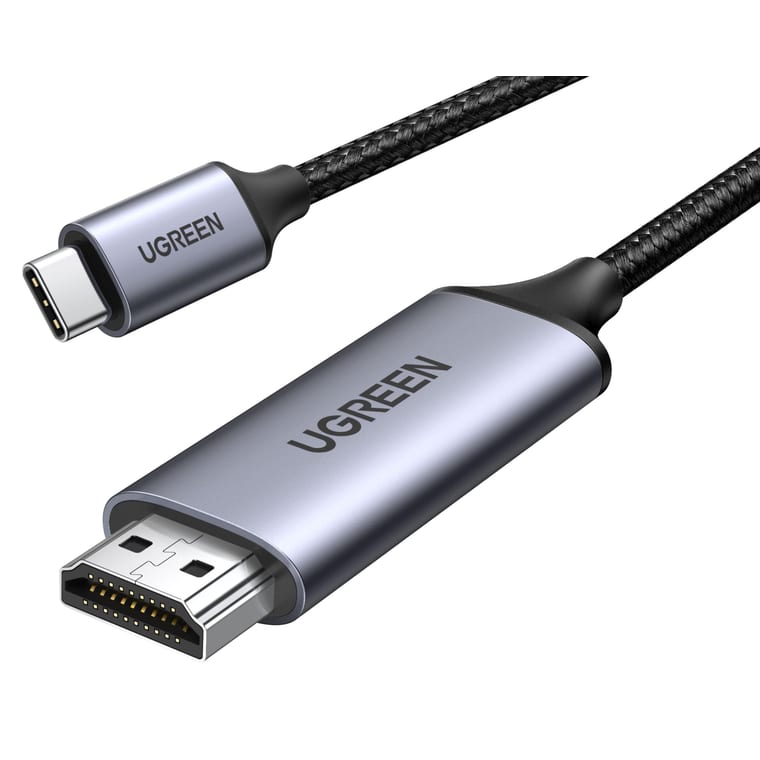
UGREEN 2M USB-C to HDMI 2.0 Cable (4K 60Hz)
One 2-metre cable for 4K at 60Hz from phones with DisplayPort Alt Mode.
~₹2,300Amazon.in
Check price →UGREEN 2M USB-C to HDMI 2.0 cable, around ₹2,300, rated 4.5 by 11,205 buyers.
One 2-metre braided cable, so you need no separate HDMI cable. UGREEN rates it for 4K at 60Hz with HDR, and lists HDCP 2.2, the copy protection that paid video apps check. It works only on phones whose USB-C port supports DisplayPort Alt Mode, and it cannot charge the phone.
- Buy it if your phone is on a maker's list in Method 5 and you want a steady picture with no Wi-Fi.
- Skip it if your phone's spec page says nothing about video output, because the cable will not work.
Best for older iPhones: Apple Lightning Digital AV Adapter
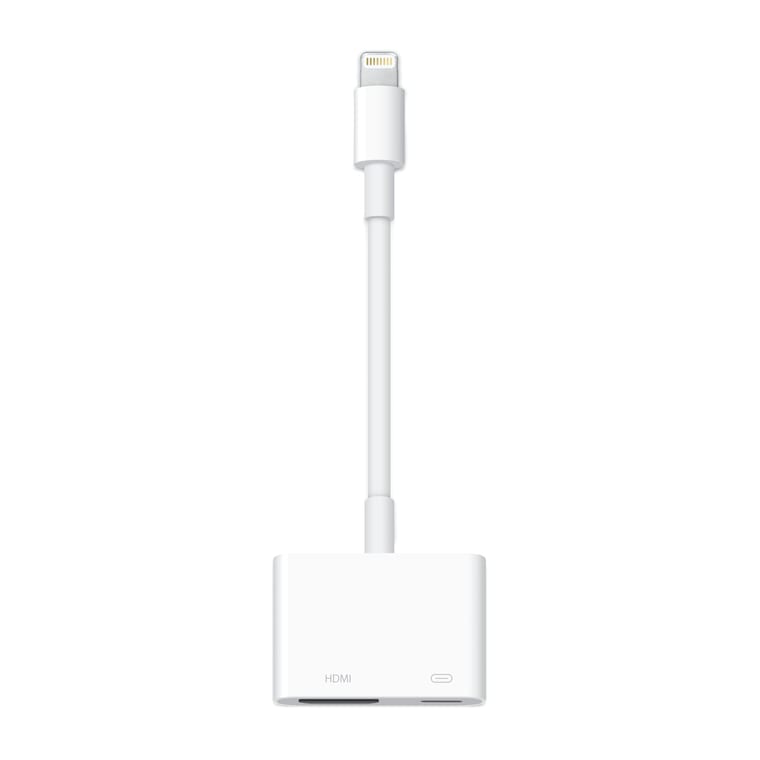
Apple Lightning Digital AV Adapter
Apple's own adapter: 1080p HD mirroring plus a spare port to charge.
~₹5,900Amazon.in
Check price →Apple Lightning Digital AV Adapter, around ₹5,900, rated 4.2 by 203 buyers.
Apple's own adapter for iPhones with a Lightning port. It mirrors in up to 1080p HD, and its spare Lightning port charges the iPhone while connected. Add an HDMI cable, such as the Amazon Basics 2-metre HDMI cable at around ₹279.
Apple warns that some streaming apps need HDCP and may still show a blank screen through the adapter.
- Buy it if you have an iPhone 14 or older and want the TV to show its screen with no Wi-Fi.
- Worth knowing: for Netflix, the Netflix help centre says the adapter must show model number A1438 or A1621.
Best for a non-smart TV: Amazon Fire TV Stick 4K Plus
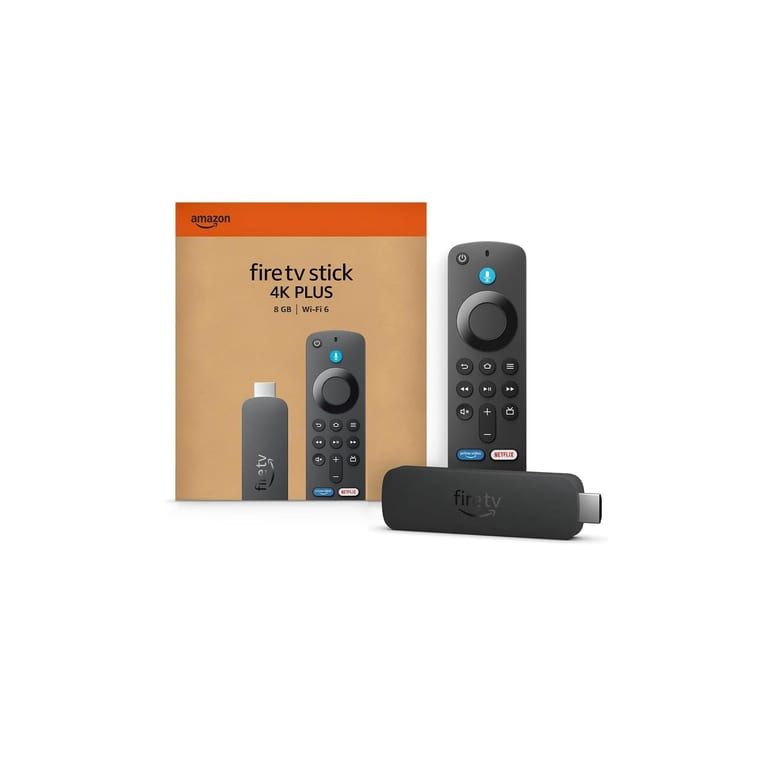
Amazon Fire TV Stick 4K Plus
Adds apps and Miracast mirroring for Android phones to any TV with HDMI.
~₹5,499Amazon.in
Check price →Amazon Fire TV Stick 4K Plus, around ₹5,499, rated 4.2 by 4,342 buyers.
The stick turns a TV with an HDMI port into a smart TV with apps such as Netflix and YouTube. Amazon lists 4K with Dolby Vision and HDR10+, Dolby Atmos sound and Wi-Fi 6. The 4K picture needs a 4K TV.
Amazon says mirroring depends on the Fire TV model, so look for Enable Display Mirroring in its settings.
We chose the 4K Plus because it runs Fire OS and Amazon's developer page lists Miracast. Amazon.in owners of the cheaper HD, which runs the newer Vega OS like the 4K Select, report no mirroring.
- Buy it if you have a non-smart TV and an Android phone that supports Miracast.
- Skip it if you want to mirror an iPhone. Use a cable or an Apple TV instead.
Prices and ratings checked on 14 October 2026 on Amazon.in.
For a laptop, see how to cast a laptop to a TV. Buying a new screen? Compare our best smart TV under 30,000 and best projector for home picks.
What to remember
- On the same Wi-Fi, Android uses the cast tile in quick settings, and an iPhone uses Screen Mirroring.
- iPhones mirror only to an Apple TV or an AirPlay TV, and cannot mirror to a Fire TV Stick.
- Sony's Google TVs need Google Cast, not Miracast.
- Check that your phone sends video before buying a USB-C to HDMI cable.
- The Lightning adapter needs a separate HDMI cable.