Add TopTechs as a preferred source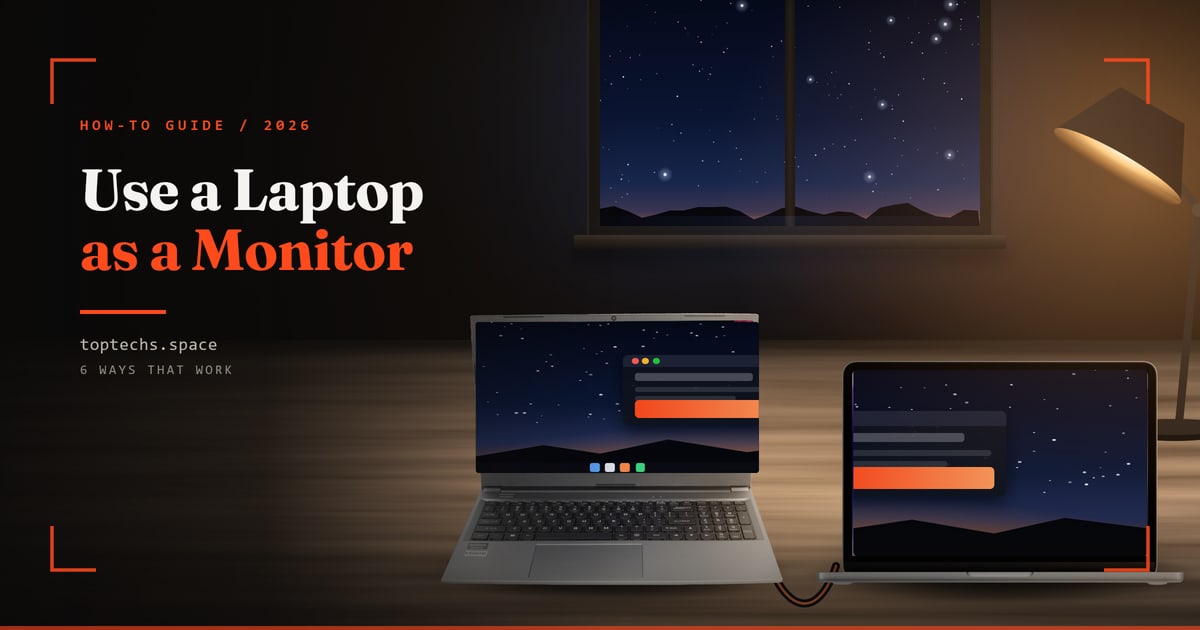
To use a laptop as a monitor for a PC, turn on the "Projecting to this PC" setting on the laptop, then press Windows + K on the PC and pick the laptop. It is built into Windows 11 and 10, but the PC's own screen must work to set it up.
An HDMI cable will not work, because a laptop's HDMI port only sends video out. If the PC has no working monitor, or for a PS5, Xbox or camera, use a USB capture card.
Quick answer: which method to use
- Second screen for a PCProjecting to this PC, then Windows + K on the PC
- PS5, PS4 or XboxPS Remote Play or Xbox remote play, or a capture card (₹849 to ₹2,849) with HDCP off
- PC with a dead monitorA capture card that sends 1080p at 60fps over USB 3.0: UGREEN 15389 around ₹2,849, or PiBOX Gen 3 around ₹849
- Old laptop, or no Wi-Fispacedesk, free for personal use, over a LAN cable
- Control a PC from the laptopRemote Desktop (Windows Pro) or Chrome Remote Desktop
- Mac to MacAirPlay Receiver on macOS Monterey 12 or later
- Laptop screen brokenHDMI from the laptop to a monitor, then Windows + P
Steps and Amazon.in prices checked on 13 October 2026, for Windows 11, Windows 10 and macOS.
Can you use a laptop as a monitor with an HDMI cable?
On almost every laptop, no. The HDMI port is an output. It sends the laptop's picture to a monitor or TV and cannot show a picture coming in, so a PC or PS5 plugged into it will not appear. Only a few laptops made for gaming or professional video work add a separate HDMI-in port.
Dell's guide to HDMI ports says most Dell computers have HDMI Out. Lenovo says a computer needs capture hardware to accept HDMI, and that most USB-C ports also send video out, so a USB-C cable between two laptops fails too. Check your spec sheet for "HDMI in" first.
Which method suits your job?
For a second screen on a Windows PC, start with Projecting to this PC. Use a capture card for consoles, cameras and PCs with dead monitors, spacedesk when the PC has no Wi-Fi, and Remote Desktop to control a PC from the laptop.
| Your job | Best method | What it needs | Hardware to buy |
|---|---|---|---|
| Second screen for a Windows PC | Projecting to this PC | Windows 10 or 11, Wi-Fi on both, a working screen on the PC | None |
| PC without Wi-Fi, or an old laptop | spacedesk | Windows 10 or 11 on the PC, Windows 7 or later on the laptop | None |
| PS5 or PS4 | PS Remote Play | Set up once on a TV; Windows 10 (64-bit), 11 or macOS Big Sur or later; 5 Mbps up and down | None |
| Xbox Series X|S or Xbox One | Xbox remote play | Set up once on a TV; Xbox app on Windows 10 or 11 (22H2 or later), or a browser on macOS 14.1.2 or later; 7 to 10 Mbps | None |
| PC with a dead monitor, console or camera | USB capture card and OBS Studio | An HDMI cable, a USB 3.0 port, HDCP off on a PlayStation | ~₹849 to ~₹2,849 |
| Laptop keyboard and screen for a PC | Remote Desktop | Windows 11 Pro or 10 Pro on the PC, set up while the PC still has a screen | None |
| Mac as the screen for another Mac | AirPlay to Mac | macOS Monterey 12 or later, most Macs from 2018 on, same Wi-Fi | None |
| The laptop's own screen is broken | HDMI out to a monitor or TV | An HDMI cable | None, if you own a screen |
Method 1: Use Projecting to this PC on Windows 11 and 10
Windows can show another PC's screen through Miracast, a standard for sending video over Wi-Fi. Add the Wireless Display feature on the laptop, then press Windows + K on the main PC. This needs the main PC's own screen, so a PC with a dead monitor needs a capture card instead.
Before you start:
- Both machines need Wi-Fi switched on. Two laptops work too.
- Press Windows + K on the main PC. If Windows asks you to connect a display with a cable instead, the PC cannot send over Miracast, so use spacedesk or a capture card.
- The Wireless Display app needs Windows 11 version 22H2 or later. Older versions use the Connect app.
On the laptop that will be the screen:
- Open Start, Settings, System, Projecting to this PC, then select Optional features.
- On Windows 11, select View features next to Add an optional feature. On Windows 10, select Add a feature.
- Type "wireless display", tick Wireless Display and select Install. On Windows 11, select Next before Install.
- Go back to Projecting to this PC and set the first menu to Available everywhere on secure networks.
- Search the taskbar for "wireless display" and open the Wireless Display app. On older versions, search for "connect" and open Connect.
On the main PC:
- Press Windows + K and select the laptop. Accept the request on the laptop if it asks.
- Press Windows + P and choose Extend for a second screen, or Duplicate for the same picture on both.
To arrange the screens, open Settings, System, Display on the main PC and drag them into place, as our guide on how to set up dual monitors shows. Fast games can stutter over Wi-Fi.
Method 2: Use a USB capture card for a PC, PS5, Xbox or camera
A USB HDMI capture card turns an HDMI signal into USB video that the laptop treats like a webcam. Connect the PC, console or camera to the card, plug the card into the laptop and show the picture full screen in the free OBS Studio app. You install nothing on the PC or console.
What you need: a USB HDMI capture card, an HDMI cable and a free USB 3.0 port on the laptop.
A PS5 or PS4 blocks capture cards until you turn off HDCP, its copy-protection signal, so connect it to a TV once. On a PS5, go to Settings, System, HDMI and turn off Enable HDCP. On a PS4, go to Settings, System and clear Enable HDCP.
For a camera, Elgato, a capture card maker, says most cameras need a mini or micro HDMI to HDMI cable, and that you should turn off the camera's on-screen overlays.
- Connect an HDMI cable from the PC, console or camera to the capture card, and plug the card into a USB 3.0 port on the laptop.
- Install OBS Studio from obsproject.com. It runs on Windows, macOS and Linux.
- In the Sources box, click +, choose Video Capture Device, then pick the card from the Device list.
- For sound on Windows, set Audio Output Mode to Output desktop audio (DirectSound/WaveOut). On a Mac, open Edit, Advanced Audio Properties and turn on Audio Monitoring for the card.
- Right-click the source and choose Fullscreen Projector (Source).
Plug a keyboard and mouse into the PC itself. If the picture lags on Windows, set Buffering to Disable, which OBS says can help.
Which capture card should you buy?
Choose a card that sends 1080p at 60 frames per second over USB 3.0, since a 30fps card shows half as many frames. Both picks are listed for 1080p at 60fps, and the UGREEN adds a known brand and a 24-month warranty.
Best capture card: UGREEN 15389
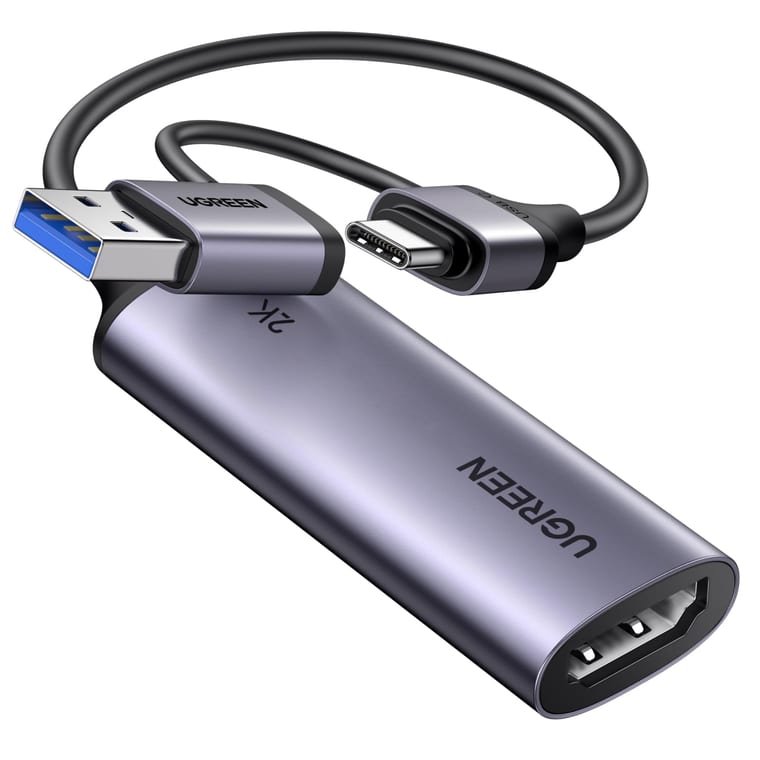
UGREEN 15389 HDMI to USB 3.0 Capture Card
1080p at 60fps over USB 3.0, USB-C and USB-A plugs, and a 24-month warranty.
~₹2,849Amazon.in
Check price →Around ₹2,849, rated 4.4 by 892 buyers.
The UGREEN 15389 HDMI to USB 3.0 capture card takes a 4K HDMI signal and sends up to 1080p at 60fps, or 2K at 30fps, over USB 3.0. It has USB-C and USB-A plugs, needs no driver on Windows or macOS, and carries a 24-month warranty.
- Buy it if you want a known brand with a warranty for a console, camera or PC.
- Worth knowing: UGREEN's USB 2.0 card costs around ₹2,140 but sends only 1080p at 30fps. Saving ₹709 for half the frame rate is poor value.
Budget capture card: PiBOX India Gen 3
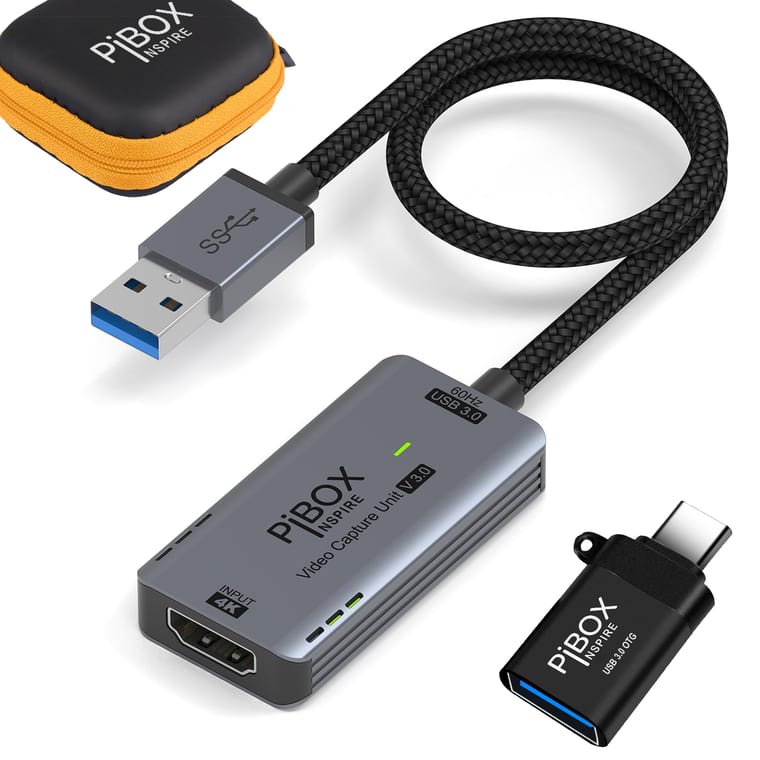
PiBOX India Gen 3 HDMI to USB 3.0 Capture Card
1080p at 60fps over USB 3.0 with a USB-A plug, under ₹900; drivers and warranty not published.
~₹849Amazon.in
Check price →Around ₹849, rated 4.2 by 879 buyers.
The listing for the PiBOX India Gen 3 HDMI to USB 3.0 capture card claims a 4K 60Hz input and up to 1080p at 60fps over USB 3.0. It has a USB-A plug, and the listing does not publish driver-free support for Windows or macOS.
- Buy it if you want to try this method for little money.
- Skip it if your laptop has only USB-C ports, or if you want a stated warranty, because the listing gives no warranty period.
What to check before you buy a capture card
- Plug: USB-C, USB-A or both, to match your laptop's ports.
- Frame rate: 1080p at 60fps over USB 3.0. PiBOX notes that a USB 2.0 port cannot reach USB 3.0 frame rates.
- Input: a 4K HDMI input.
- Drivers: driver-free support for Windows or macOS, stated on the listing.
- Warranty: a stated period on the listing.
For daily gaming, a real monitor lets you skip the capture card. Our best gaming monitor guide compares prices.
Method 3: Play a PS5, PS4 or Xbox on a laptop with remote play
Sony and Microsoft both stream a console's picture to a laptop over your home network, with no capture card. PS Remote Play runs on Windows and macOS, and Xbox remote play runs in the Xbox app on Windows or at xbox.com/remoteplay in a browser.
Sony asks for Windows 10 (64-bit) or 11 with a seventh-generation Intel Core processor or newer, or macOS Big Sur through Tahoe. It needs 5 Mbps upload and download speed, or 15 Mbps for the best result.
For a PS5, set up the console once on a TV:
- On the PS5, go to Settings, System, Remote Play and turn on Enable Remote Play.
- Install PS Remote Play on the laptop from playstation.com and connect the controller with a USB cable.
- With the PS5 switched on, open the app, select Sign In with the console's PlayStation account, then select PS5.
If the app cannot find the PS5, go to Settings, System, Remote Play, Pair Device on the PS5, and enter the number the PS5 shows into the app on the laptop.
For a PS4:
- On the PS4, go to Settings, Remote Play Connection Settings and turn on Enable Remote Play.
- Go to Settings, Account Management, Activate as Your Primary PS4 and select Activate.
- On the laptop, sign in to PS Remote Play the same way and select PS4.
To pair a PS4, go to Settings, Remote Play Connection Settings, Add Device.
For an Xbox Series X|S or Xbox One, set up the console once on a TV, using Xbox's remote play guide:
- Press the Xbox button on the controller to open the guide.
- Go to Profile & system, Settings, Devices & connections, Remote features.
- Select Enable remote features, and under Power options, select Sleep. Xbox says remote play needs Sleep mode.
- On a Windows laptop, open the Xbox app, click your profile picture and select View profile. Under Where I play, select Add a console and follow the steps.
- On a Mac, or without the app, go to xbox.com/remoteplay in Safari, Edge or Chrome.
Xbox asks for 7 to 10 Mbps on 5GHz Wi-Fi and recommends an Xbox Wireless Controller, by Bluetooth or USB cable. The app needs Windows 10 or 11, version 22H2 or later, and a Mac browser needs macOS 14.1.2 or later.
Method 4: Use spacedesk to extend a PC onto a laptop
The spacedesk app makes a laptop an extra screen for a Windows PC over your home network, by cable or Wi-Fi. It is free for personal use, and its viewer runs on laptops as old as Windows 7. You install it on the PC, so the PC needs a working screen.
- On the PC, install the spacedesk driver from spacedesk.net and restart. spacedesk says the 64-bit Windows 11 installer also works on 64-bit Windows 10.
- On the laptop, install spacedesk Viewer from the Microsoft Store, or the Windows 7 viewer from spacedesk's website.
- Connect both to the same network. spacedesk rates a LAN cable above Wi-Fi.
- Open the viewer and select the PC from its list.
- On the PC, press Windows + P to choose Extend or Duplicate.
Business use needs a paid licence. A beta spacedesk driver for Macs on macOS 14.4 or later lets a Windows laptop extend a Mac too.
Method 5: Use Remote Desktop to run a PC from your laptop
Remote Desktop shows a PC's desktop in a window on your laptop, and the laptop's keyboard and mouse control it. Microsoft's built-in version needs Windows 11 Pro or Windows 10 Pro on the PC. Home editions cannot accept connections.
Set it up while the PC still has a working screen, or borrow a TV for ten minutes. To check the edition, open Settings, System, About, Windows specifications.
- On the PC, open Start, Settings, System, Remote Desktop, turn on Remote Desktop (Enable Remote Desktop on Windows 10) and select Confirm. Note the PC name.
- On the laptop, search the taskbar for Remote Desktop Connection and open it. A Mac uses Microsoft's Windows App.
- Enter the PC name, select Connect and sign in.
On Windows 11 Home, use Google's Chrome Remote Desktop. Both computers need internet and the same Google Account. On the PC, open Chrome, go to remotedesktop.google.com/access, click Download under Set up Remote Access and follow the steps, which include choosing a PIN.
On the laptop, open the same address, click Access, pick the PC and enter the PIN you chose when setting up Chrome Remote Desktop.
On a Mac: use AirPlay to make a Mac the screen
A Mac can show another Mac's screen over Wi-Fi with AirPlay to Mac. The receiving Mac needs macOS Monterey 12 or later, and Apple lists the iMac Pro, Mac mini models from 2020 on and other Macs from 2018 on. Both must share one Wi-Fi network.
- On the screen Mac, choose Apple menu, System Settings, General, AirDrop & Continuity (AirDrop & Handoff on some versions) and turn on AirPlay Receiver. On macOS Monterey 12, it is in System Preferences, Sharing.
- Set Allow AirPlay for to Current User if both Macs use your Apple Account, or Anyone on the Same Network.
- On the main Mac, click Control Center, then Screen Mirroring, and choose the other Mac. Enter the code if asked, then choose to mirror or extend.
To switch later, use the Use as menu in System Settings, Displays. AirPlay cannot show a Windows PC, so to see and control one from a Mac, use Remote Desktop with Microsoft's Windows App.
If your laptop's own screen is broken
Reverse the job: use the laptop's HDMI port to show its picture on a monitor or TV. You need an HDMI cable, or a USB-C to HDMI adapter if the laptop's USB-C port carries video.
On a Windows laptop:
- Connect the laptop to the monitor or TV and pick that HDMI input with the screen's Input or Source button.
- If nothing appears, press Windows + P, tap P again and press Enter. Microsoft suggests repeating this to cycle through display modes until the picture shows.
- Then press Windows + P and choose Second screen only.
On a MacBook, connect the display with a cable or adapter. With the lid closed, Apple says the Mac must be on power with an external keyboard and mouse.
A MacBook with Apple silicon might ask you to allow the display. Apple says the display remains dark until you allow it, so you need to see that prompt on the built-in screen.
If the sound stays on the laptop, our guide on how to cast a laptop to a TV shows how to switch it.
Not working? Try these
- Laptop missing from the Windows + K list: check that Wi-Fi is on in both and the Wireless Display app is open. Then remove the old entry and connect again, under Settings, Bluetooth & devices, Devices on Windows 11, or Settings, Devices, Bluetooth & other devices on Windows 10.
- Capture card shows black: turn off HDCP on a PS5 or PS4. Elgato says streaming apps such as Netflix always switch HDCP on, and an Xbox One or Switch may need a restart after using such an app.
- OBS cannot see the card: allow camera access. On Windows 11, turn on Let desktop apps access your camera in Settings, Privacy & security, Camera (on Windows 10, Allow desktop apps to access your camera under Privacy, Camera). On a Mac, turn on OBS in System Settings, Privacy & Security, Camera.
- spacedesk cannot find the PC: allow spacedeskService.exe through any third-party firewall or antivirus, or open TCP port 28252.
- Blurry picture: choose the resolution marked (Recommended) in Settings, System, Display, then confirm it with our screen resolution checker on the laptop's screen.
What to remember
- A laptop's HDMI port only sends video out.
- For a Windows PC with a working screen, use Projecting to this PC.
- For a PC with a dead monitor, use a capture card. For a console, use remote play.
- For an old laptop or a PC without Wi-Fi, use spacedesk.
- Remote Desktop needs Windows Pro. On Windows Home, use Chrome Remote Desktop.
- From Mac to Mac, use AirPlay on macOS Monterey 12 or later.