Add TopTechs as a preferred source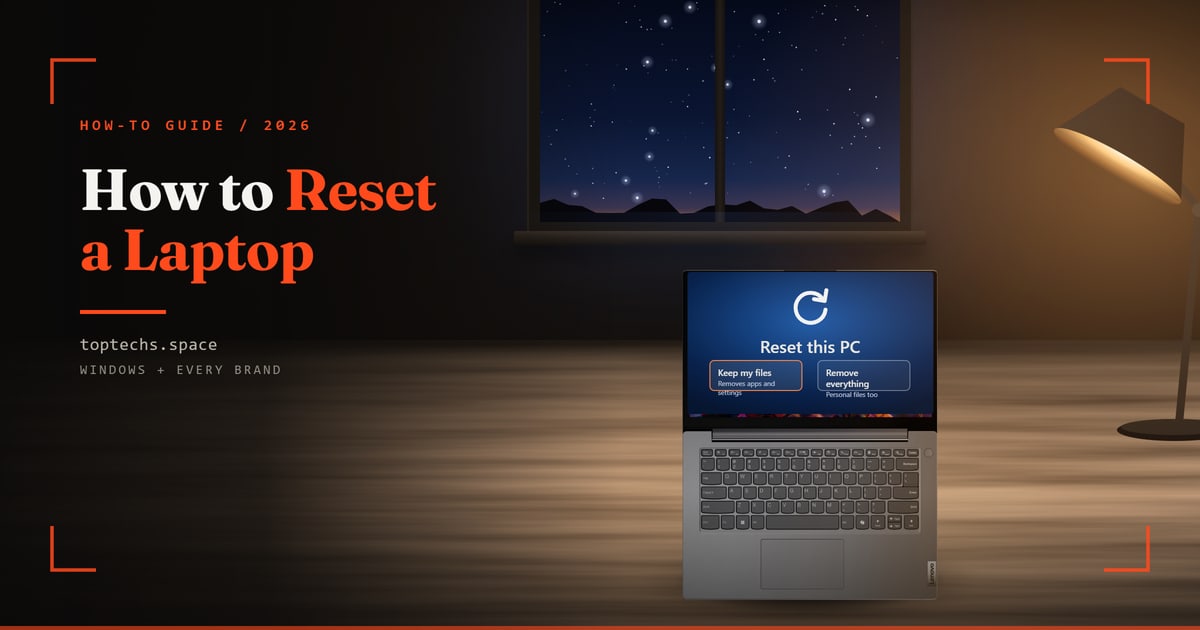
To reset a laptop on Windows 11, open Settings, then System, then Recovery, and select Reset PC (on Windows 10, Update & Security, Recovery, Get started). Choose Keep my files to keep your documents. Before selling, choose Remove everything with Clean data turned on, and pick all drives if Windows asks.
Forgot the password, or Windows will not start? You can still reset from the sign-in screen or with your laptop maker's startup key.
The quickest route for each laptop
- Windows 11Settings, System, Recovery, then Reset PC
- Windows 10Settings, Update & Security, Recovery, then Get started
- Forgot passwordReset the password first to keep your files, or hold Shift and select Power, then Restart
- Windows won't startSwitch off twice while loading, then Advanced options, Troubleshoot, Reset this PC
- AcerPress Alt + F10 when the Acer logo appears
- ASUSTap F12 (F9 on some models) right after power-on
- HPPress F11 repeatedly as the laptop restarts
- DellPress F12, then choose SupportAssist OS Recovery
- Lenovo IdeaPadPress the Novo button with a pin, then System Recovery
- MacBookErase All Content and Settings (macOS Monterey or later)
- ChromebookSign out, press Ctrl + Alt + Shift + R, then Powerwash
- Before sellingRemove everything with Clean data on, then unlink it from your Microsoft account
Steps checked on 14 October 2026 against each maker's support pages.
What to do before you reset a laptop
Back up your files, plug in the charger and keep two things ready: your Microsoft account password, to sign in afterwards, and your BitLocker recovery key, which a reset can ask for. Microsoft says most recovery jobs take 30 minutes to 2 hours.
- Files. Copy them to OneDrive, Google Drive or an external drive, or use Windows Backup. Changing phones too? See how to transfer data to a new phone for phone backups.
- BitLocker key. Windows can encrypt the drive by itself when you use a Microsoft account, even on Windows Home. On your phone, sign in at aka.ms/myrecoverykey with that account to see the 48-digit key. Microsoft says it may also be in the account of whoever set up the laptop, on a printout or USB drive, or with your IT team.
- Windows and Office. Microsoft says a laptop with a digital licence reinstalls the same Windows edition without a product key. If the laptop came with Office, activate it in Word with your Microsoft account first, because Microsoft says resetting before that removes the licence. Later, reinstall Office from account.microsoft.com, under Subscriptions.
- Power. Keep the laptop plugged in, as ASUS, Dell and Lenovo advise. If power cuts are common, use a socket on your home inverter.
- Wi-Fi. Microsoft does not publish the Cloud download size, so use Wi-Fi, not a small mobile data pack.
Keep my files or Remove everything: which should you choose?
Choose Keep my files to fix a slow or faulty laptop you will keep. Choose Remove everything, with Clean data turned on, before you sell or give it away. People who say "format the laptop" usually mean Remove everything, which wipes your files and reinstalls Windows.
| Option | What stays | What goes | Choose it when |
|---|---|---|---|
| Keep my files | Documents, photos and other files | Your apps, drivers and settings | It is slow or faulty, but you keep it |
| Remove everything | A fresh copy of Windows. Other drives stay unless you pick all drives | Files, apps, settings and user accounts | You want it as it was when new |
| Remove everything + Clean data + all drives | A fresh copy of Windows | Everything on every drive, cleaned so files are harder to recover | Selling, gifting or recycling |
Then pick where Windows comes from. Cloud download fetches a fresh copy with the latest updates, while Local reinstall uses the copy on the laptop and suits a slow connection, as Microsoft's Reset your PC page explains.
How to reset a laptop on Windows 11 and Windows 10
On Windows 11, open Settings, System, Recovery and select Reset PC. On Windows 10, open Settings, Update & Security, Recovery and select Get started. Pick your options and select Reset. Microsoft warns the screen can go black for over 15 minutes, so leave the laptop alone.
- On Windows 11, select Settings, System, Recovery, then Reset PC. On Windows 10, select Start, Settings, Update & Security, Recovery, then Get started.
- Choose Keep my files or Remove everything, then Cloud download or Local reinstall.
- To turn on Clean data or Restore preinstalled apps, select Change settings, then Confirm. If Windows asks about drives, choose all drives to wipe a second drive too.
- Select Next, then Reset. The laptop restarts several times.
A reset keeps your Windows version, HP notes, so Windows 10 stays Windows 10, which lost Microsoft support on 14 October 2025. To repair Windows 11 and keep your apps, select Reinstall now under Fix problems using Windows Update on the Recovery page.
How to reset a laptop without the password
Reset the password first if you can, because that keeps your files. If you cannot, hold Shift and select Power, then Restart, on the sign-in screen. Choose Troubleshoot, Reset this PC and Remove everything, because Keep my files asks for a password, as Lenovo's steps show.
For a Microsoft account, select I forgot my password on the sign-in screen, or visit account.live.com/ResetPassword.aspx on your phone. For a local account, one without an email address, select the arrow in the password box, then OK and Reset password, and answer your security questions.
Forgot only your PIN? Select I forgot my PIN below the PIN box. Microsoft says this works only for Microsoft accounts. If it is missing, select Sign-in options and sign in with your password instead.
- On the sign-in screen, hold Shift and select Power, then Restart. Keep holding Shift as the laptop restarts.
- Select Troubleshoot, Reset this PC and Remove everything.
- If asked for a BitLocker key, open aka.ms/myrecoverykey on your phone, sign in with the laptop's Microsoft account and type the key shown. Then choose a download option and select Reset.
How to reset a laptop that will not start
When Windows fails to start several times, it opens its recovery screen by itself. To force this, switch the laptop off with the power button twice while Windows is loading. On the third start, select Advanced options, then Troubleshoot, then Reset this PC.
- Turn the laptop on, and hold the power button until it switches off before Windows finishes loading. Do this twice.
- On the third start, Automatic Repair opens. Select Advanced options (on some Windows 10 laptops, See advanced repair options).
- Select Troubleshoot, then Reset this PC.
- Choose Keep my files or Remove everything, then Cloud download or Local reinstall, and select Reset.
Here, Keep my files asks for an account password, as Lenovo's steps show. Microsoft says an encrypted laptop asks for its BitLocker key, and Cloud download may need a network cable or manual Wi-Fi. Dell laptops with SupportAssist OS Recovery open that tool instead of Automatic Repair.
Under Troubleshoot, Advanced options, System Restore undoes recent changes and keeps your files.
Which key resets a laptop? Startup keys by brand
Each maker uses its own key. Acer uses Alt + F10, ASUS uses F12 or F9, HP uses F11, Dell uses F12 and Lenovo IdeaPads use a Novo button. Most open the blue Choose an option screen, and several makers add their own reset tool.
| Laptop | Key or button | When to press it | Maker's own reset tool |
|---|---|---|---|
| Acer | Alt + F10 | When the Acer logo appears | Care Center, Recovery Management |
| ASUS | F12, or F9 on some models | Quickly, right after power-on | MyASUS in WinRE, Cloud Recovery |
| HP | F11 | Repeatedly, as it restarts | HP Cloud Recovery Tool |
| Dell | F12 | Before the Windows logo appears | SupportAssist OS Recovery |
| Lenovo IdeaPad | Novo button | With the laptop switched off | System Recovery |
| Any Windows laptop, including ThinkPads | Shift + Restart | In Windows or at sign-in | Windows Reset this PC |
| MacBook with Apple silicon or T2 | No key needed | From the Apple menu | Erase All Content and Settings |
| Older Intel MacBook | Command + R | Right after power-on | macOS Recovery, Disk Utility |
| Chromebook | Ctrl + Alt + Shift + R | After signing out, then select Restart | Powerwash |
If a key does nothing, test it on our free keyboard tester while Windows is running.
How to reset an Acer laptop
Switch the Acer laptop off, turn it on and press Alt + F10 when the Acer logo appears. On the Choose an option screen, select Troubleshoot, then Reset this PC. Acer says this works on its Windows 11 and 10 laptops, even when Windows will not start.
- Hold the power key for 5 seconds to switch the laptop off completely.
- Turn it on and press Alt + F10 at the Acer logo. After Please Wait, Choose an option opens.
- Select Troubleshoot, Reset this PC, then Keep my files or Remove everything. Keep my files asks for your password, and an encrypted laptop asks for its BitLocker key.
- Choose Cloud Download, which Acer says needs stable internet, or Local Reinstall, and select Reset.
If Windows still works, Acer's Care Center app, where installed, offers the same reset under Recovery Management.
How to reset an ASUS laptop
Press the power button and quickly tap F12 several times, or F9 on some models, to open Choose an option. Select Troubleshoot, then Reset this PC, or MyASUS in WinRE to use ASUS's Cloud Recovery. Cloud Recovery downloads Windows and restores factory condition.
Before you use Cloud Recovery, note that ASUS says it erases the drive holding Windows and takes about 1 to 3 hours, with Wi-Fi and the charger connected. If MyASUS in WinRE is not listed, your model lacks it.
- Press the power button, then quickly press F12 several times, or F9 on some models.
- Select Troubleshoot, then Reset this PC or MyASUS in WinRE. With Reset this PC, Keep my files asks for your password, and an encrypted laptop asks for its BitLocker key.
- In MyASUS in WinRE, select Cloud Recovery, connect to Wi-Fi and follow the prompts. It offers to back up your files to an external drive first.
How to reset an HP laptop
Restart the HP laptop and press F11 repeatedly until the blue Choose an option screen opens. Select Troubleshoot, then Reset this PC, and pick your options. If Windows still works, search for Recovery options in Windows and select Reset PC instead.
- Restart the laptop and immediately press F11 repeatedly.
- Select Troubleshoot, then Reset this PC, and follow the prompts. Keep my files asks for your password, and an encrypted laptop asks for its BitLocker key.
For HP PCs made in 2016 or later, HP's Cloud Recovery Tool restores HP's original Windows and drivers. HP says recovery removes all data on the drive, with an option to back up files first. You need another Windows PC and a blank USB drive of 64 GB or more.
Install the tool from the Microsoft Store on that PC to set up the drive. Then plug it into the HP laptop, press F9 at power-on and choose it.
How to reset a Dell laptop
Turn the Dell laptop on and press F12 to open the one time boot menu, then choose SupportAssist OS Recovery and select START RESET. Dell says the tool also opens by itself after two failed starts in a row on supported models.
Plug in the charger first, which Dell requires. Only Dell's consumer lines, such as Inspiron, Vostro, XPS and Alienware, keep a factory copy of Windows on the laptop. The Reset and update option downloads the newest Windows instead of using the factory copy, so it needs internet.
- Turn the laptop on and press F12 before the Windows logo appears.
- Select SupportAssist OS Recovery, then START RESET on the RESET tile.
- Select Reset to factory settings and NEXT, choose whether to back up your files, then select YES, CONTINUE.
- Tick the box confirming the reset deletes your data, select NEXT, then RESTART at the end.
Without SupportAssist OS Recovery, use Dell's OS Recovery Tool on a working Windows 10 or 11 PC. Enter the Dell's Service Tag and give it a USB drive with at least 16 GB free. Then press F12 on the Dell and choose the drive.
How to reset a Lenovo laptop
On a Lenovo IdeaPad, switch the laptop off and press the Novo button, a small button or pinhole marked with a curved arrow, using an unfolded paper clip. Choose System Recovery, then Troubleshoot, then Reset this PC. ThinkPads have no Novo button, so use Settings or Shift + Restart.
- With the laptop off, gently press the Novo button, usually on the side or near the power button, with a paper clip.
- In the Novo Button Menu, choose System Recovery. Some IdeaPads open Lenovo OneKey Recovery instead.
- Select Troubleshoot, then Reset this PC. Keep my files asks for your user and password. Remove everything asks whether to clean Only the drive where Windows is installed or All drives.
- Select Reset with the charger plugged in.
Lenovo says newer IdeaPad, Yoga, Legion and LOQ laptops also open this menu with the Super Key, usually F9 or Insert, while switched off. Not every model has a Novo button, so check your user guide. ThinkPads and Lenovo tablets have none.
How to reset a MacBook
On macOS Ventura or later, choose the Apple menu, System Settings, General, Transfer or Reset, then Erase All Content and Settings. Apple says this needs macOS Monterey or later on a Mac with Apple silicon or the T2 chip, and it keeps macOS installed.
- Open System Settings, then General, Transfer or Reset and Erase All Content and Settings. On macOS Monterey, choose it from the System Preferences menu.
- Type your login password, click Continue, type your Apple Account password, then click Erase All Content & Settings.
- Selling the Mac? Skip the setup assistant after it restarts, and hold the power button until it turns off.
Macs without this option use macOS Recovery. Sign out of iCloud and iMessage first, as Apple advises. On Apple silicon, hold the power button until Loading startup options appears, then click Options and Continue. On Intel, hold Command + R at startup.
Then erase the disk in Disk Utility and choose Reinstall macOS, as Apple's guide to erasing a Mac explains. Forgot the login password? Apple's login window offers reset options, and Recovery offers Erase Mac as a last resort.
How to reset a Chromebook
A Chromebook resets with Powerwash. Google says Powerwash erases all your data on the Chromebook itself, but not your files in Google Drive or on external drives. You cannot reset a work or school Chromebook yourself, so ask your administrator.
- Sign out of the Chromebook.
- Press and hold Ctrl + Alt + Shift + R, then select Restart.
- Select Powerwash, then Continue.
- Sign in with your Google Account, which becomes the owner.
What to choose before you sell or give away a laptop
Choose Remove everything and turn on Clean data, which Microsoft recommends before you donate, recycle or sell a PC. It takes longer, up to an hour or two by Microsoft's estimate, but makes deleted files harder to recover. Then remove the laptop from your Microsoft account.
- Reset with Remove everything and Clean data turned on. With a second drive or a D: partition, Microsoft says Windows can wipe all drives or only the Windows drive. Choose all drives, labelled All drives in Lenovo's steps.
- In any browser, open account.microsoft.com/devices, select the laptop's Show details, then More actions and Remove. Tick I'm ready to remove this device and select Remove.
- Select Unlink so it stops counting towards your Microsoft Store device limit.
Microsoft says this wipe is meant for home users and does not meet government or industry erasure standards, so ask your IT team about laptops with office data.
Not working? Try these
- The startup key does nothing. Tap it repeatedly right after power-on, or use Shift + Restart. ASUS suggests turning off Fast Boot in the BIOS, which opens with F2 at the logo on Acer and Dell, F2 or Fn + F2 on IdeaPads, F1 on ThinkPads, Esc then F10 on HP, and F2 held while pressing power on ASUS. Our laptop keyboard not working fixes may also help.
- The reset stops with an error. Try Cloud download, which Microsoft suggests when the laptop's files are damaged.
- The laptop looks stuck. Leave it. HP says interruption is the most common cause of failed recoveries.
- A BitLocker screen appears. At aka.ms/myrecoverykey, pick the key whose ID starts with the 8 digits shown on screen. Microsoft says it cannot retrieve a lost key, and without it you need a reset that removes all your files.
- The recovery screen fails too. Reinstall Windows from a USB drive. A clean install removes everything.
How to reinstall Windows from a USB drive
When no reset option works, make a Windows installation drive on another PC at microsoft.com/software-download, with a USB drive of 8 GB or more. Start the laptop from it and install Windows 11, which erases everything. Microsoft says Setup applies a product key stored in the laptop's firmware.
- On another PC, make the USB drive with Microsoft's media tool.
- Plug it into the laptop and open the boot menu with F12 on Acer and Dell, or F9 on HP. On Lenovo IdeaPads, choose the boot menu option in the Novo Button Menu. On ASUS, pick the USB drive in the BIOS. If F12 does nothing on an Acer, turn on F12 Boot Menu in the BIOS, as Acer advises.
- In Windows Setup, pick your language and keyboard. Select Install Windows 11, tick I agree everything will be deleted including files, apps, and settings, and select Next.
- If a product key screen appears, choose I don't have a product key, as ASUS advises for laptops sold with Windows, then Accept the licence terms.
- Delete the partitions on Disk 0 only, select Disk 0 Unallocated Space, then Next and Install.
- After setup, sign in with your Microsoft account so Windows applies your digital licence.
Microsoft notes a generic install may miss the maker's drivers and apps. Run Windows Update afterwards, as HP advises after any recovery, and get missing drivers from the maker's support site.
If the laptop still fails, take it to the brand's authorised service, especially under warranty, or compare a repair quote with our picks for the best laptop under ₹40,000.
What to remember
- Back up first, keep the charger plugged in and have your BitLocker key ready.
- Forgot the password? Reset it, or use Remove everything from the sign-in screen.
- Before selling, turn on Clean data, pick all drives and remove the laptop from your Microsoft account.