Add TopTechs as a preferred source
The fastest way to transfer data to a new phone is the tool built into setup. It moves contacts, messages, photos and most app data in one pass.
Which tool depends on the direction you are going: Android to Android uses the cable transfer during setup, Android to iPhone uses Apple's Move to iOS app, and iPhone to Android uses Google's Switch to Android app.
This guide covers every direction, what each method will and will not carry across, and the preparation that prevents most failed transfers.
Quick answer
- Before anything elseCharge both phones, connect them with a cable, and run the transfer during the new phone's setup. That is when the tools are offered.
- Android → AndroidTap "Copy apps & data"
- Android → iPhoneChoose "Move Data from Android" and install Move to iOS
- iPhone → iPhoneHold them near each other and use Quick Start
- iPhone → AndroidInstall Switch to Android first, and turn off iMessage before you start
Do these four things first
Skipping these causes most of the transfers that stall or arrive incomplete.
- Check the space. On the old phone, open Settings → Storage and note how much is used. The new phone needs at least that much free. A 128 GB phone that is 110 GB full will not fit onto a new phone with only 64 GB free.
- Back up anyway. On Android: Settings → Google → Backup → Back up now. On iPhone: Settings → [your name] → iCloud → iCloud Backup → Back Up Now. If the transfer goes wrong, you have lost nothing.
- Charge both phones past 50% and keep them plugged in. A transfer that dies at 80% has to start over.
- Update both phones if prompted. Mismatched versions are a common reason the tools refuse to pair.
Android to Android
Every Android phone has a transfer step in its setup wizard. A cable is faster and more reliable than Wi-Fi.
- Power on the new phone and work through language and Wi-Fi until you reach "Copy apps & data". Tap it.
- Choose a backup from an Android phone, then connect the two phones with a USB-C cable. Most boxes include an adapter for this. With no cable, pick the wireless option.
- On the old phone, unlock it and tap Copy when prompted.
- Choose what to bring: apps, photos and videos, messages, contacts, call history, settings and Wi-Fi passwords.
- Wait. A full transfer usually takes 15–45 minutes, depending on how many photos you have. Apps keep downloading in the background after setup finishes.
Already finished setup? You can still restore. Back up on the old phone (Settings → System → Backup), then factory reset the new phone and run setup again. The transfer only appears during setup.
Samsung to Samsung: use Smart Switch instead. It carries extras that Google's tool skips, including your home-screen layout, alarms and Samsung Notes.
Android to iPhone
This is the most-searched switch of the lot, and Apple's free Move to iOS app handles it properly. It builds a temporary private Wi-Fi network between the two phones and copies straight across.
- On the new iPhone, go through setup until you reach "Transfer Your Apps & Data", then choose "From Android".
- On the Android phone, install Move to iOS from the Play Store and open it.
- The iPhone shows a ten- or six-digit code. Type it into the Android phone.
- Pick what to move: contacts, message history, camera photos and videos, mail accounts, calendars and display settings.
- Leave both phones alone until the iPhone's loading bar completes. The Android bar often finishes first, which does not mean it is done.
What comes across: contacts, messages, photos, videos, calendars, mail accounts, web bookmarks, and some free apps if they exist on the App Store.
What does not: paid Android apps (you have to buy them again on iOS), app data for most third-party apps, and anything DRM-protected.
WhatsApp needs its own step. Use WhatsApp's built-in Transfer chats to iPhone option before you switch.
Missed the window? Move to iOS only appears during setup. To use it afterwards you must erase the iPhone (Settings → General → Transfer or Reset iPhone → Erase All Content and Settings) and set it up again.
iPhone to iPhone
The easiest transfer of them all, because it is device-to-device with no apps involved.
- Turn on the new iPhone and hold it next to the old one. A Quick Start card appears on the old phone.
- Tap Continue and point the old iPhone's camera at the animation on the new screen.
- Enter your old passcode, then choose Transfer from iPhone for a direct copy. Restoring from iCloud instead is slower and needs enough iCloud space.
- Keep them side by side and plugged in until it completes.
This carries almost everything: apps, data, layout, settings and Health data.
Some banking and authenticator apps deliberately do not transfer and must be set up again. Check your two-factor codes before you wipe the old phone.
iPhone to Android
Google's Switch to Android app, from the App Store, does the work. There is one step you must not skip.
- Turn off iMessage first. On the iPhone: Settings → Messages → iMessage off. Turn off FaceTime too. Skip this and texts from iPhone users keep routing to iMessage and never arrive on your Android — sometimes for weeks.
- Install Switch to Android on the iPhone.
- On the new Android phone, start setup, choose to copy data, then connect the two with a cable. You need a USB-C to Lightning cable if you are coming from an older iPhone.
- Follow the prompts and pick your contacts, photos, videos, calendar and messages.
Already sold the iPhone? You can still pull most things from iCloud: photos via iCloud.com, and contacts and calendars by adding your iCloud account to the Android phone.
What each method actually moves
| Switching | Tool | Messages | Apps | App data | Typical time |
|---|---|---|---|---|---|
| Android → Android | Setup wizard / Smart Switch | Yes | Yes | Most | 15–45 min |
| Android → iPhone | Move to iOS | Yes | Free apps re-downloaded | Rarely | 20–60 min |
| iPhone → iPhone | Quick Start | Yes | Yes | Nearly all | 15–40 min |
| iPhone → Android | Switch to Android | Yes | No | No | 15–45 min |
Moving WhatsApp — the one everyone forgets
WhatsApp chats do not reliably ride along with the phone transfer. Handle it separately, before you wipe the old phone.
- Same platform: back up inside WhatsApp (Settings → Chats → Chat backup) to Google Drive or iCloud, then restore when you install WhatsApp on the new phone with the same number.
- Across platforms: use WhatsApp's own Transfer chats feature in Settings → Chats. It needs a cable and both phones present.
- Do this before deactivating the old SIM. WhatsApp verifies by SMS.
When a transfer fails
- Stuck at "1 minute remaining". Normal on large photo libraries. Give it another 20 minutes before restarting.
- Phones will not pair. Turn off mobile data on both, keep them within a metre, and disable any VPN.
- Not enough space. The transfer will refuse. Delete some video or move photos to the cloud, then retry.
- Messages missing after moving to Android. You left iMessage on. Turn it off on the old iPhone, or deregister at Apple's deregistration page.
- Photos arrived but nothing else. You likely used a file-copy tool rather than the setup transfer. Reset and run setup properly.
Before you wipe the old phone
- Open the new phone and check that contacts, messages, photos, WhatsApp and your banking apps actually work.
- Move your two-factor authenticator codes across. These almost never transfer automatically, and losing them locks you out of accounts.
- Sign out. On iPhone, remove your Apple Account; on Android, remove your Google account. This clears activation locks for whoever gets the phone next.
- Only then, factory reset the old phone.
Bottom line
Every modern phone has a transfer tool built into setup, and it beats copying files by hand. It is the only route that carries messages and settings.
Check your storage, back up, use a cable, and run the transfer during setup — that is the only time most of these tools are offered. Then verify everything on the new phone before you reset the old one.
The one thing worth buying first
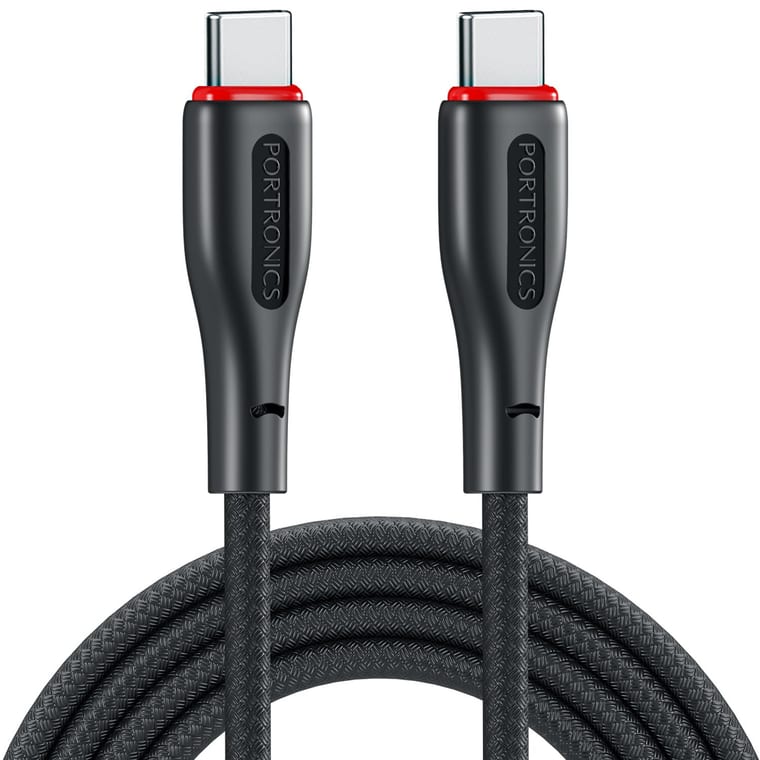
Every method here is faster and far more reliable over a cable than over Wi-Fi.
- Portronics 100W USB-C to USB-C cable — a proper data-rated USB-C cable. Many cheap charging cables carry power but not data, which is the most common reason a phone-to-phone transfer refuses to start.
Just moved in? Two things worth doing next: get your screen onto the TV. And if the new phone is the reason you are here, our guides to the best budget phones and best phones under ₹15,000 in India cover what to buy next time.